AI Image Generator — text to image in seconds
Describe anything you can imagine and Photix generates a brand-new, high-resolution image — no design software, no prompt engineering, no accounts. Just words, a style, and a tap.
A blank page, solved
Traditional AI art tools ask you to master prompts, models, and settings before you see a single result. Photix flips that around. You bring the intent — a sentence, a style, or a reference photo — and it handles enhancing the prompt, applying the artistic recipe, running the model, and delivering a result you can refine in seconds.
- High-resolution, share-ready output every time
- Ten one-tap styles from Realism to Pixel Art
- Enhance Prompt fills in the descriptive detail
- Up to two reference photos per generation
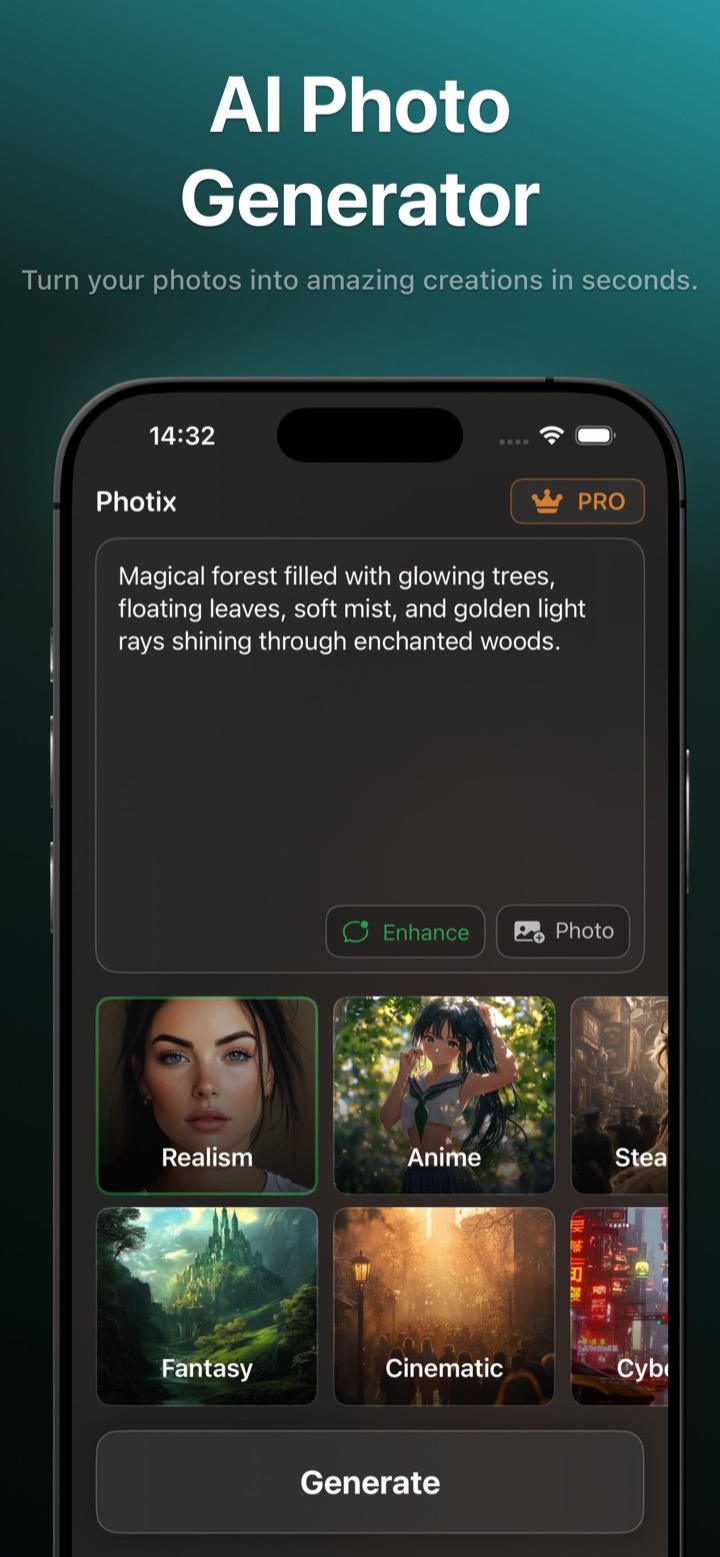
From words to artwork in four steps
- 1
Describe your idea
Type anything into the prompt box — “a cozy cabin in a snowy forest at night”, “a robotic dragon over golden clouds”. There's no blank-page anxiety; a style or reference photo can carry the idea too.
- 2
Pick a style (optional)
Tap one of ten curated styles to instantly reshape the look — Cinematic for drama, Anime for character art, Realism for lifelike detail.
- 3
Add references & enhance
Attach up to two reference photos to combine or transform them, and toggle Enhance Prompt to let Photix expand a short idea into a detailed prompt.
- 4
Generate & refine
Tap Generate, watch the friendly countdown, then regenerate for variations, zoom in, download, or share your favorite.
Not sure what to type? Start here.
Copy one of these into the prompt box, pick a style, and tap Generate.
- Castle floating above the clouds during sunset
- A robotic dragon soaring over a neon city
- Elven princess in an enchanted forest
- Magical forest with glowing trees and golden light rays
- Vintage film portrait of an astronaut, grainy and warm
- Cyberpunk street market in the rain, reflections everywhere
Tips for better AI images
- Name the subject, the setting, and the mood — “a fox, in a misty pine forest, at dawn” beats “a fox”.
- Let a style do the heavy lifting instead of describing lighting and texture by hand.
- Turn on Enhance Prompt when you only have a few words; turn it off when you want precise control.
- Use reference photos to keep a specific face, object, or composition consistent.
- Regenerate a few times — small wording changes and fresh seeds produce very different results.
Every idea, ten ways
Styles are the fastest way to change a result without rewriting your prompt. Here are the ten that ship with Photix.
Realism
Photorealistic, natural lighting, ultra-HD detail.
Fantasy
Glowing magic, mythical creatures, ethereal atmosphere.
Anime
Cel-shaded, bold outlines, expressive characters.
Cinematic
Dramatic lighting, film grain, widescreen mood.
Steampunk
Brass gears, Victorian machinery, ornate detail.
Cyberpunk
Neon light, high-tech, retro-futuristic cityscapes.
Vintage
Grainy film, faded tones, nostalgic retro photo look.
Paint
Hand-drawn brushstrokes, warm painterly tones.
Illustration
Bold outlines, comic and halftone shading.
Pixel Art
8-bit retro-game blocks and limited palettes.
AI image generator questions
How does the Photix AI image generator work?
Do I need to know how to write prompts?
Can I use my own photos as references?
How many variations can I make?
More Photix features
One app, a whole creative studio. See what else your imagination can do.
Generate your first image free
Download Photix and turn a sentence into stunning art in seconds.
Rated 4.8 by 2M+ happy users